Free Phone Call QR Code Generator
Create a QR code that opens the phone dialer when scanned.
Thank You!
We have sent the QR code to your e-mail address.
An error has occurred
Please try again later, server is not available now.

Generate QR codes for phone calls
Enter a phone number, generate a QR code, and use it on stickers, flyers, signs, packaging, or service labels. The QR code uses a direct tel: link and does not require a website.
Compare your original QR code with an optimized version for small print, labels, stickers, and engravings.
Standard QR
Tiny QR
Optimized payload:
This text is already encoded efficiently, so no smaller Tiny QR version is available.
Tiny QR mode does not use custom compression. It keeps the QR code standard and scannable by normal phone cameras, but formats the payload in a QR-friendly way where safe.
Your QR code has been saved to your inbox.
We saved your request, but inbox delivery is not available yet. Use the downloads above.
Your QR code copy was saved. Use the downloads above if you need another file.
Could not complete the server request. Please try again.
Generate QR codes for phone calls
Enter a phone number, generate a QR code, and use it on stickers, flyers, signs, packaging, or service labels. The QR code uses a direct tel: link and does not require a website.
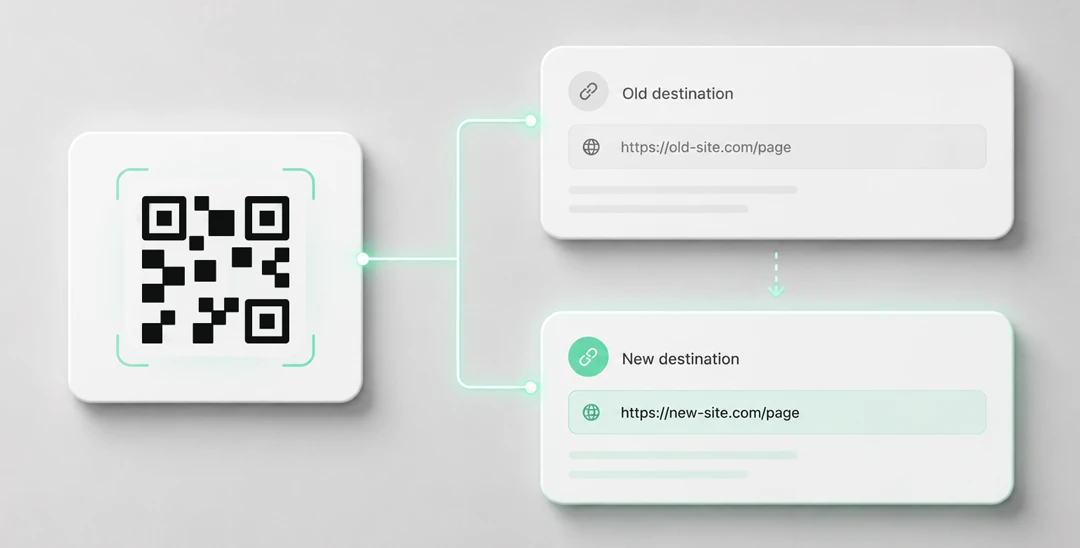
Need editable QR codes with unlimited scans?
Create a dynamic QR code



A phone call QR code is a static QR code that stores a phone number directly inside the QR code. When someone scans it on a smartphone, the phone dialer opens with the number prefilled so the person can decide whether to start the call.
This generator creates the QR code locally in your browser and lets you download SVG or PNG files right away. It normalizes common phone number formatting such as spaces, brackets, hyphens, and international 00 prefixes.
What is a Phone Call QR Code?
A phone call QR code contains a direct telephone URI. Instead of sending scanners through a website or redirect, the phone number is encoded inside the QR code itself.
Yohn.io generates this payload with the standard lowercase tel: scheme for broad smartphone and QR scanner compatibility.
Example payload:
tel:+4970312094220
How to Create a QR Code for a Phone Number
- Scroll up to the Phone Call QR Code Generator.
- Enter the phone number, preferably in international format such as
+49 7031 2094220. - Click Generate QR code.
- Download the SVG or PNG file and test it with a smartphone camera before printing.
The generator accepts common formats such as +49 (7031) 2094220, 0049 7031 2094220, and +1 415 555 2671. The generated payload is cleaned into a direct phone call URI.
Where to Use Phone Call QR Codes
Phone call QR codes are useful when the goal is immediate contact from printed or physical materials:
- Service labels and repair equipment
- Emergency contact stickers
- Business cards and appointment cards
- Flyers and shop windows
- Hotel, reception, or support signs
- Packaging and product inserts
Because the phone number is stored directly in the QR code, the QR code can work without a website, redirect, landing page, or analytics setup.
Phone Call QR Codes vs vCard QR Codes
A phone call QR code is focused on one action: opening the dialer with a phone number. It is a good fit for “Call us” labels and simple contact prompts.
A vCard QR code stores broader contact details such as name, company, email, phone number, and website. Use vCard when you want someone to save a complete contact. Use Phone Call QR when the primary action should be calling.
Do Phone Call QR Codes Work Offline?
Yes. A phone call QR code is a static offline QR code. The phone number is stored directly inside the QR code using the telephone URI format. It does not need a redirect, dashboard, or landing page.
Need to change the phone number later? Use a dynamic QR code instead, so the printed QR code can stay the same while the destination changes.
Tips for Reliable Phone Call QR Codes
- Use international format with a country code whenever possible.
- Keep the printed QR code large enough for the scan distance.
- Test the QR code on both iPhone and Android before printing.
- Leave enough quiet space around the QR code.
- Use strong contrast between the QR code and its background.